
OAuth2 Tutorial: Google as an Authentication Service for Web Applications
In this tutorial, you will learn how to use Google’s OAuth 2.0 Authorization Server with Membrane API Gateway to authorize HTTP requests following RFC 6749 (OAuth 2.0) and OpenID Connect Core 1.0.
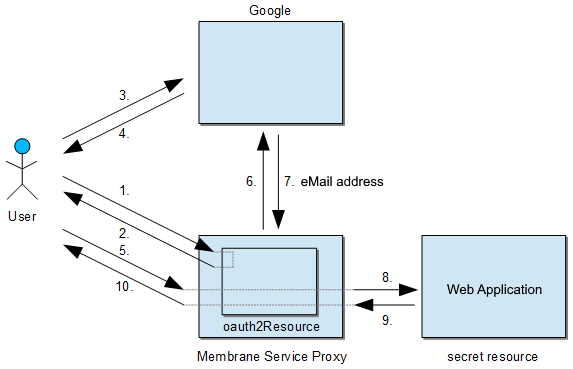
This tutorial covers:
- Setting up Google Auth Platform as the Authorization Server
- Configuring Membrane as the OAuth2 Client
- Running a sample OAuth2 authorization flow
You will need about 10 minutes, a Google account, an internet connection, and the Membrane API Gateway.
1. Set up Google as Authorization Server
Step 1: Open Google Cloud Console
Go to https://console.cloud.google.com and sign in.
Step 2: Create a Project
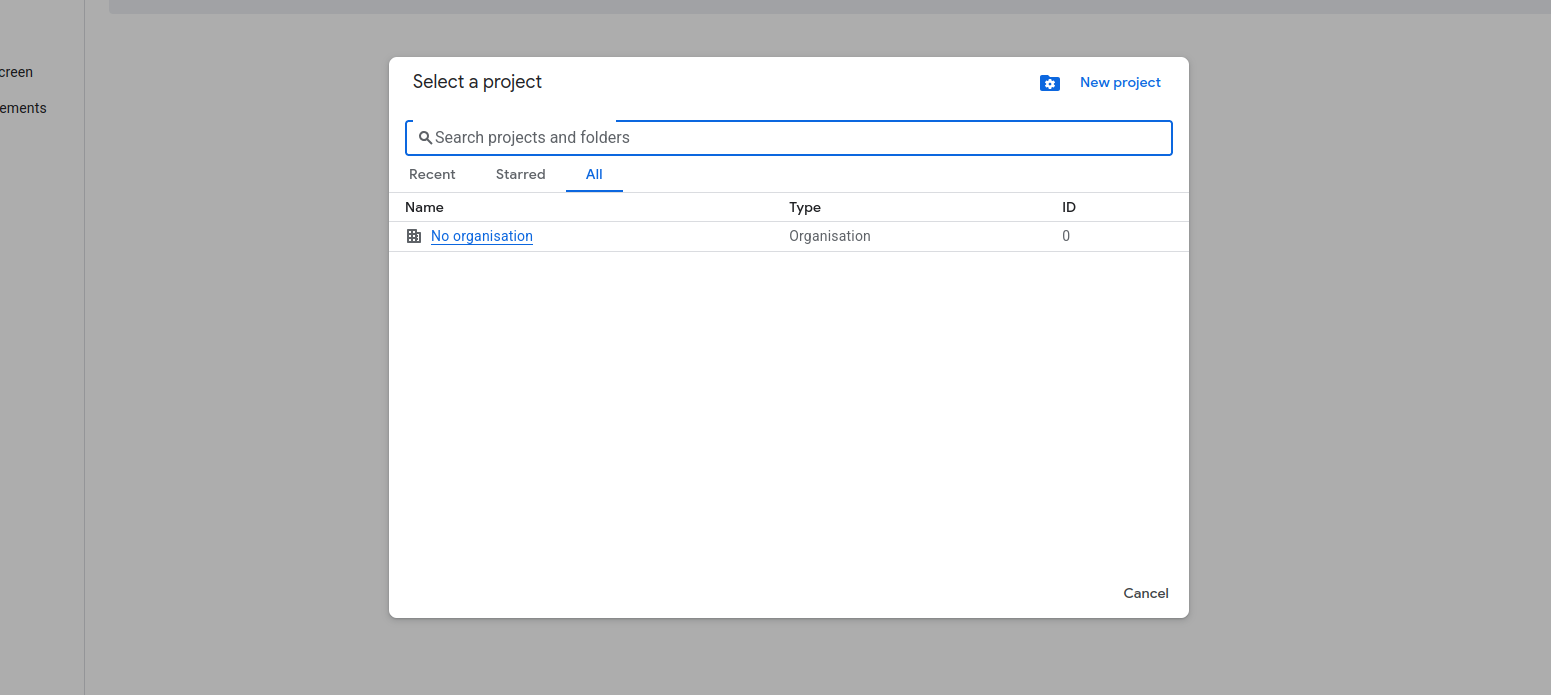
Click the project selector on the top bar and select New Project. Enter a name such as My Secret Resource and click Create.
Step 3: Configure the OAuth Consent Screen
Open the navigation menu on the left and select Google Auth Platform then OAuth consent screen.
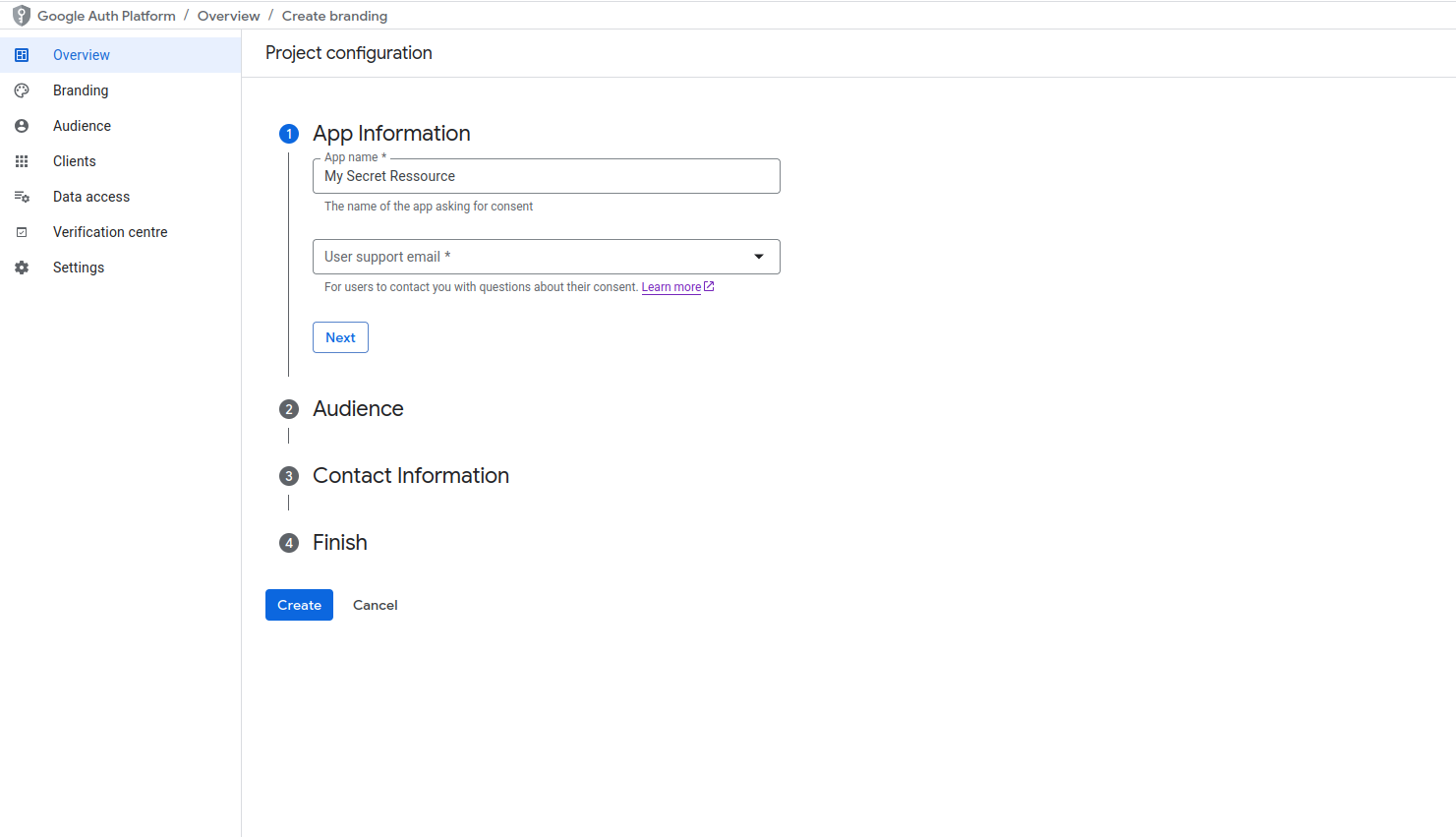
- Click Get started
- Fill in the App name, Support email and Developer contact information.
- Select External as the user type.
- Click Create.
Step 4: Create an OAuth Client ID
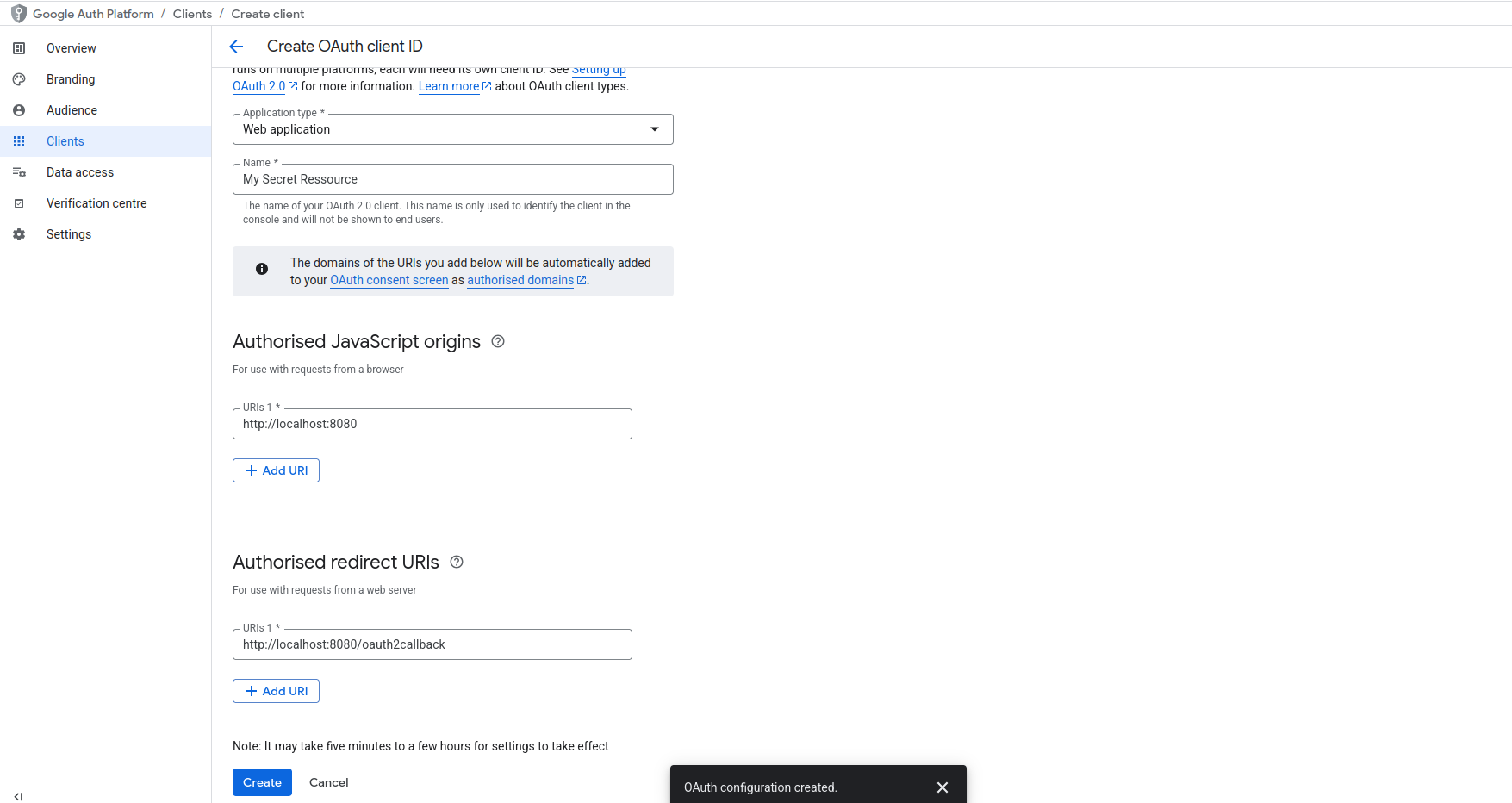
- Open Google Auth Platform and select Clients.
- Click Create client and choose Web application as the application type.
- In Authorized redirect URI, enter
http://localhost:8080/oauth2callback. - In Authorized JavaScript origin, enter
http://localhost:8080. - Click Create and note your Client ID and Client Secret (without .apps.googleusercontent.com).
Keep this browser tab open because you will need these credentials later for Membrane.
2. Configure Membrane API Gateway
Navigate to $MEMBRANE_HOME/examples/security/oauth2/google and open proxies.xml for editing.
<api port="8080">
  <oauth2Resource2>
    <google
      clientId="YOUR_CLIENT_ID"
      clientSecret="YOUR_CLIENT_SECRET" />
  </oauth2Resource2>

  <groovy>
    def email = exc.properties.'membrane.oauth2'.userinfo.email
    exc.response = Response.ok("Hello " + email + ".").build()
    RETURN
  </groovy>
</api>
<api port="8080">
  <oauth2Resource2>
    <google
      clientId="YOUR_CLIENT_ID"
      clientSecret="YOUR_CLIENT_SECRET" />
  </oauth2Resource2>

  <groovy>
    def email = exc.properties.'membrane.oauth2'.userinfo.email
    exc.response = Response.ok("Hello " + email + ".").build()
    RETURN
  </groovy>
</api>
Listing 1: Sample OAuth2 configuration
Replace YOUR_CLIENT_ID and YOUR_CLIENT_SECRET with the values from Google.
Step 5: Start Membrane
Run Membrane from that directory:
./membrane.shMembrane now listens on port 8080 for incoming HTTP connections.
3. Perform a Sample OAuth2 Authorization
Step 6: Access the “Secret Resource”
Open your browser and go to http://localhost:8080/. You will be redirected to Google’s login and consent screen.
Sign in, click Allow, and you will be redirected back to Membrane. You should see a message such as Hello <your.email@example.com>.
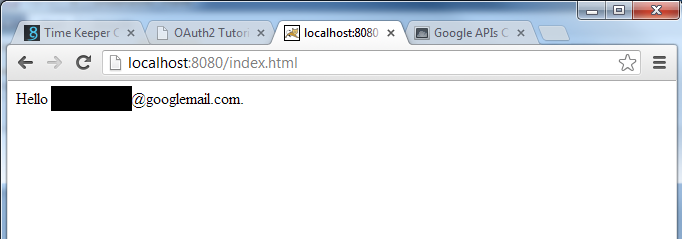
Congratulations. You have successfully completed an OAuth2 setup with Google Auth Platform.
Summary
You have configured Google’s OAuth2 authorization server and Membrane as a client to authorize users using OpenID Connect. Membrane automatically uses Google’s discovery endpoints to retrieve all required OAuth2 URLs.
Notes
- Always use HTTPS in production environments.
- Validate user identity before granting access to sensitive resources.
- Protect your resource server behind a firewall to prevent direct access.
- Membrane automatically handles token exchange and userinfo retrieval from Google’s OIDC endpoints.
- If the user session expires, Google may automatically reauthorize users who have already granted consent.